Master Your Organization: Unlocking the Full Potential of My Personal Planner Canva Templates
Staying organized in a chaotic world often feels like a battle against time. Between managing household chores, tracking personal finances, and maintaining a healthy lifestyle, the administrative load of daily life is heavy. This is where My Personal Planner Canva Templates step in as a transformative tool. These digital assets are designed to streamline your life, offering a cohesive system to manage everything from your Daily Meal Planner to your Yearly Expenses. However, simply purchasing or downloading a template is only the first step. Many users fail to maximize the utility of these tools due to common oversights in setup and usage. To truly benefit from these high-quality print-ready files and editable Canva links, one must approach them with strategy and care.
The Power of Editable Convenience
The primary appeal of these templates lies in their flexibility. You receive high-quality, print-ready PDF files and JPEG files, but the true value is unlocked through the editable Canva links. This allows you to modify fonts, colors, layouts, and content to suit your specific aesthetic and functional needs. However, a frequent mistake occurs right at the point of download. Users often attempt to edit the original link provided by the seller. This creates a host of issues. First, you may inadvertently alter the master file, breaking the link for future use or other devices. Second, you cannot save your progress effectively on a file you do not own.
The Solution: The moment you open the provided link, navigate immediately to your Canva home. Do not begin editing the template directly. Instead, locate the "Make a copy" option—usually found under the "File" menu. Duplicate the document into your own account. This simple action creates a private, editable version. Working on your own copy ensures the original link remains active and pristine, while giving you full ownership and control over your planner’s evolution.
Avoiding the "One-Size-Fits-All" Trap
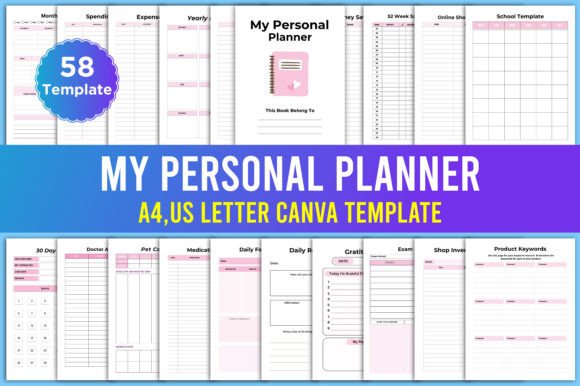
Another common pitfall is treating the checklist of available pages as a rigid requirement rather than a menu of options. The suite includes an impressive array of trackers, from a 52 Week Savings Tracker to a Pet Care Chart. Beginners often feel overwhelmed by the sheer volume or, conversely, try to print and use every single page immediately. This leads to planner burnout. If you do not have a pet, the Pet Care Chart is unnecessary clutter. If you are not currently in school, the Exam Checklist is irrelevant.
The Better Approach: Curate your planner. Before printing, sit down and assess your current life stage. If you are an entrepreneur, prioritize the Shop Inventory Tracker, Product Keywords list, and Order Tracker. If your focus is wellness, select the Daily Food Tracker, Water Tracker, and Mood Tracker. By selectively deleting pages that do not serve you, you create a streamlined, personalized tool that you will actually use, rather than a bulky binder that gathers dust.
Design Fidelity and Print Quality
When working with editable Canva templates, users often underestimate the importance of design integrity. It is tempting to go wild with customization—changing fonts, adding excessive images, or altering the color scheme drastically. While personalization is key, doing so without a design eye can result in a cluttered, hard-to-read layout. This defeats the purpose of a planner, which relies on clarity to function.
Furthermore, the transition from screen to paper is where many fail. The templates are provided as high-quality print-ready PDF files, but your home printer settings matter immensely. Users often print in "Draft" mode to save ink, resulting in faded lines and text that is difficult to read. Others forget to check "Scale to Fit" or "Actual Size," leading to cut-off margins.
Practical Advice: Stick to the template's original design structure as much as possible. If you change fonts, ensure they remain legible at smaller sizes. When printing, always select "High Quality" or "Best" in your printer settings. If you are using a professional printing service, utilize the provided PDF files rather than JPEGs, as PDFs maintain vector sharpness and ensure your Monthly Budget lines are crisp and professional.
Integration vs. Isolation
A subtle mistake is viewing the planner as a collection of isolated lists rather than an integrated system. For example, the Weekly Shopping List should ideally connect with your Weekly Meal Planner. The Money Saving Planner should inform your No Spend Challenge. Many users fill these out in isolation, missing the synergy that makes planning efficient.
Consider the Daily Habit Tracker and the Daily Reflections page. Used together, they allow you to correlate your actions with your feelings. Did sticking to your habits improve your mood? The data is right there. Similarly, the School Template can be cross-referenced with the Doctor Appointment tracker to ensure vaccination records or medical notes are accessible when school forms are due.
Digital vs. Physical: Knowing Your Workflow
With the availability of both JPEG files and editable links, you must decide on your workflow. Some users make the mistake of trying to maintain both a digital and physical version simultaneously without a system for syncing them. This leads to data discrepancy—one version says you have milk, the other does not.
Choose your lane: If you prefer a physical binder, commit to the print-ready PDFs. If you are a digital nomad, use the Canva app on your tablet to fill out the templates digitally. If you mix the two, establish a rule. For instance, use the physical Daily Planner for on-the-go tasks, but maintain your Yearly Expenses and Bill Payment Tracker digitally for easier calculation and data backup.
Final Checklist for Success
Before you dive into organizing your life with My Personal Planner Canva Templates, ensure you have covered these bases to avoid frustration and wasted effort:
- Secure Your Data: Always make a copy of the template in your own Canva account immediately upon purchase. Never edit the original link.
- Curate Content: Select only the pages relevant to you, such as the Daily Chore Chart or Bucket List, and delete the rest to reduce visual noise.
- Check Print Settings: Verify that your printer is set to high quality and that margins are correctly aligned before printing the PDF files.
- Plan Your Integration: Connect related trackers (e.g., linking your Online Shopping Tracker with your Spending Tracker) to create a holistic financial overview.
- Maintain Consistency: Set a specific time each week to update your planner. A Weekly Planner is useless if you don't review it every Sunday.
By avoiding these common errors and adopting a strategic approach, you transform a simple set of files into a powerful engine for productivity. Whether you are tracking your Daily Checklist or managing a complex Shop Supplies Tracker, the right approach ensures your planner works for you, not the other way around.